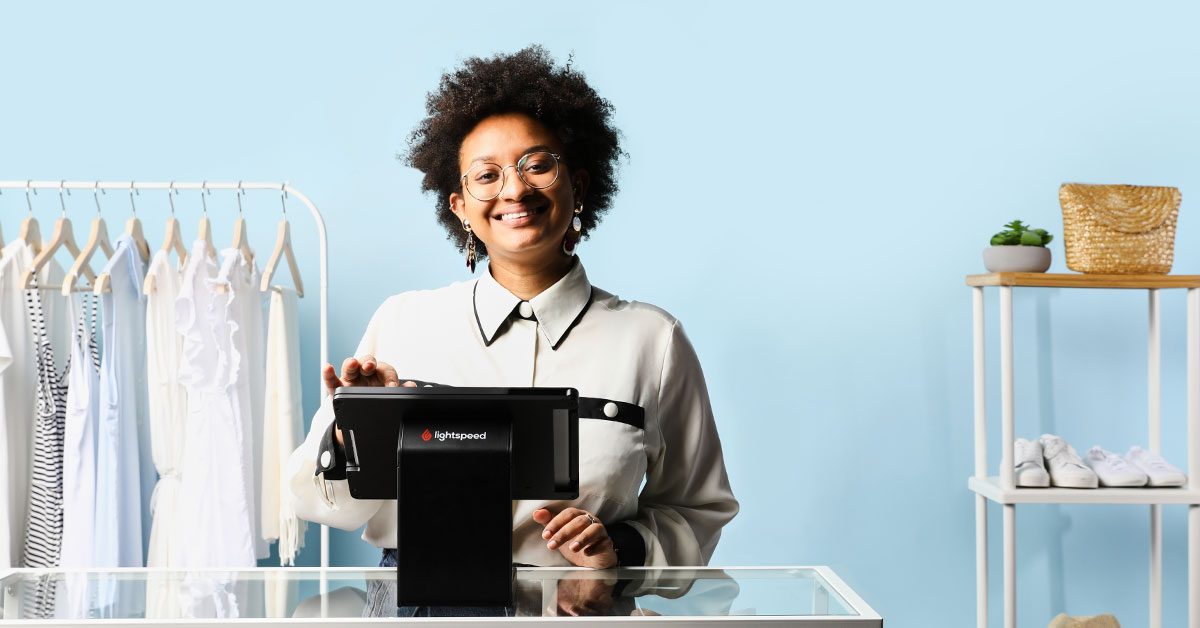
Ambitious and innovative business owners are tasked with providing the right leadership, infrastructure, and tools that allow employees to become high performers.
Touchscreen cash registers are perfect for businesses that are innovative and data-driven. They even expedite checkout lines and operations… a key advantage considering 82% of consumers will move on if your lines are too long.
You may have new team members who are fresh to retail. Or you may have seasoned staff who need to learn a new system. POS cash register systems allow you to quickly show your staff how to use a cash register (when compared to how long it can take to learn how to use a traditional system)
So without further ado, let’s dive into how to use a cash register computer with a touchscreen for your business.
- What is a touchscreen cash register?
- Set up your system
- Running transactions
- Closing your shift
- Touchscreen cash register vs. Legacy cash register
- More than a cash register
Grow your retail business.
Streamline inventory, suppliers, teams and stores with Lightspeed's all-in-one platform. From intuitive POS and stock management features to powerful reporting, Lightspeed gives you the tools you need to grow.
What is a touchscreen cash register?
A touchscreen cash register is a faster and more modern alternative to more traditional registers. And, as you know, speed is a critical consideration when it comes to processing transactions. The cash register touchscreen designs help your teams work more efficiently while helping you increase customer satisfaction by way of faster checkout lines and shorter waits. You can also integrate these registers with key systems in your tech stack and customize their screens to better meet your needs.
You may have new starters who are fresh to retail. Or you may have seasoned staff who need to learn a new system. Touchscreen cash registers allow business owners to quickly show staff how to work a cash register.
By doing so you can:
- Achieve faster transaction speeds and checkout lines
- Track employees with accuracy
- Improve inventory accuracy
- Increase employee productivity
- Simplify inventory management across all your locations
- Streamline relationships with suppliers
- Have flexible ways to take payments
- Purchase new stock
- Transfer stock between store locations
- Create product discounts
- Manage product performance across multiple stores
- Increase customer loyalty by growing your CRM database and capturing more emails
- Get critical insights about the financial performance of your business
Set up your system
The first thing you’ll want to do is set up your new touchscreen cash register. To maintain consistency with the retail, restaurant and payments industries, we’ll refer to your register as a point of sale (POS).
If you decide to purchase a modern POS system that runs on an iPad, then the setup process should be pretty straightforward. You’ll want to connect your device to power, turn it on, and download your system’s register app from the App Store. It’s also possible that your register app came preloaded on your tablet.
Before you can start using your register, you’ll want to login to your system’s back office application and set up the rest of your point-of-sale system. This back office software is where you’ll add inventory, configure tax rates, add new employees, review reports and manage your entire business. In modern systems, this application is typically accessed with a web browser on a laptop or desktop computer.
When the software side of your system is ready to go, and your tablet register is working, the next thing you’ll want to do is set up your hardware peripherals. For most businesses, this is going to include a cash drawer, credit card reader and a receipt printer at a minimum. If you run a retail business, you might also have a barcode scanner.
Typically these devices connect to your device with either a cord or wirelessly over Bluetooth. Before opening your doors, we recommend running a few test transactions to ensure that all of your hardware and software is working correctly.
Running transactions
With your system set up and your doors open, the next thing you’ll likely do is run a live transaction.
Before you can do that, you’ll need to login to the register app on your tablet. Typically this involves entering a PIN code. Doing so allows you to tie all of the transactions and associated data (sales, returns, discounts) back to your account. This is a useful tool for helping you manage your employees, especially if you want a record of each employee’s register activity.
With that done, you’re ready to run transactions. To run a transaction, the first step is to enter ‘new sale’ and then add the item that the customer is buying into the register. You can do that a few different ways. The easiest and fastest way is by scanning the barcode or UPC with a barcode scanner. However, if you don’t have one, you‘ll need to either look for the item with the on-screen buttons or search for it using the on-screen keyboard.
Once you’ve added the item, or items, to the transaction, there are just a few more steps left. You’ll want to apply any discounts that might be valid to the customer’s transaction, and then select the customer’s tender type and collect payment. Some common tender types include cash, debit, credit or smartphone payments like Apple Pay.
When ringing up a customer, make sure to search for them in your system’s customer database. If they’re a new customer, you’ll need to add them by collecting their email address. This is an important step because you can then add the customer to your email marketing list and send them promotions and other marketing emails designed to get them to buy from you again.
If the customer decides to check out with a credit card or debit card, you’ll either want to swipe it or insert it into your reader if it’s an EMV enabled card. The process is similar for running smartphone transactions. Normally the customer will just hold their phone over your reader and authenticate the transaction with their phone’s fingerprint reader or a PIN code. From there, you’ll want to follow the same receipt process as you would with a cash transaction.
Closing your shift
After a busy day spent running transactions for customers, there are a few things you’ll want to do before you turn off the lights and head home for the night. It all starts with closing your shift. Normally this is a quick process. Just navigate through your register app’s interface until you find the right button. Tap it and you’ll begin the process of closing your shift.
On most modern POS systems, closing a shift will require you to enter the amount of cash remaining in the cash drawer. This ensures accurate recordkeeping day to day. Once you enter the cash amount into the register app, go ahead and close the shift.
From here you’ll want to print out an end-of-day report. This report gives you a summary of the entire shift. It’ll also let you know if the drawer amount you just entered is over or under the expected amount. If you have less cash than you expected, it could even be a sign that you have an employee theft problem, so it’s definitely something we recommend looking into.
In addition to the register opening and closing amount, the report will show you other high-level information that will help you understand the day’s activity. A few examples:
- Sales by tender: the day’s sales total broken down by tender types like cash and credit.
- Returns: the day’s returns total broken down by tender types like cash and credit.
- Discounts: the day’s discounts total broken down by tender types like cash and credit.
- Drops: the amount of cash removed from the register to be deposited to a safe or bank.
- Pay ins: the amount of cash you added to the drawer during the day (e.g., you added a roll of quarters for change).
Once you’ve printed out your report, the very last thing you’ll want to do is clock out of the register app to end your shift for the day. Time to head home for some much-deserved rest and relaxation.
Touchscreen cash register vs. Legacy cash register
| Consideration | Touchscreen cash register | Legacy cash register |
| Transaction speed | Fast | Slow |
| Inventory tracking | Real-time updates | Manual |
| Employee tracking | Accurate attribution and detailed performance reports | Limited |
| Payment options | All payment types (cash, cards, checks, mobile wallets, gift cards) | Cash, credit cards, debit cards, checks |
| Reporting | Real-time | End–of-day |
| Locations | Real-time sync with multiple stores and warehouses; mobile registers offer all these benefits on the go | A single store |
More than a cash register
A touchscreen cash register should do more for you than ring up sales. When integrated with a POS system, it can create a seamless in-store experience.
Learning how to work a touchscreen cash register is the first step to igniting your growth. It enables your staff to be more efficient and proactive to delight customers in store.
This ensures your staff have the tools they need to succeed. Which in turn, lays the foundation for your business’ growth.
Furthermore, this helps to retain skilled employees. An intuitive system that is easy to use can improve the employee experience by:
- Providing fast access to support so they can get the help they need. That means no more struggling with difficult systems and adding stress to a shift.
- Employee performance reports to track how well everyone is operating in their roles. These reports can help you identify the best staff and reward them for their great work. You can also incentivise staff with rewards, or identify who may need help to improve in their role.
- Less admin work like manual inventory counts, closing sheets and reports.
Today, point of sale systems are much more than simply touch screen cash registers. They’re the centre of your entire business. Get more from your register with Lightspeed.
FAQs on Touch Screen Cash Register
How much money should I keep in my cash register?
It depends on your business’ needs, but it’s important to set a limit. Keep a lean cash drawer to minimize the potential for loss, and make regular deposits into your office safe throughout the day.
What’s the difference between a touchscreen cash register and a POS system?
A touchscreen cash register is a type of POS system—a cash register touchscreen design for a point-of-sale system designed to process transactions.
Can a touchscreen cash register work without the internet?
If you’re wondering how to use a touchscreen cash register without the internet, the short answer is: you can. However, that’s a high-risk approach as card transactions can get declined once you’re back online. It’s best to have Wi-Fi and backup internet for your touchscreen cash register, such as cellular data.
What types of payments can a touchscreen cash register accept?
It can accept the same forms of payments that are widely accepted by consumer-facing businesses today including cash, credit cards, debit cards, and smartphone payments such as Apple Pay.
Can a touchscreen cash register manage inventory?
It’s a tool that can help you manage inventory. Integrate it with your POS software to update your inventory levels in real time, and to simplify and speed up the process of reconciling your inventory.
What hardware do you need for a touchscreen cash register?
You’ll need a cash drawer, credit card reader, and receipt printer. If you’re in retail, you might also have a barcode scanner.

News you care about. Tips you can use.
Everything your business needs to grow, delivered straight to your inbox.