Track and receive stock
POS and ordering, all in one system
Transform the way you manage inventory with purchase orders on Lightspeed. Get accurate, streamlined ordering and receiving with built-in tools and automatic adjustment of stock counts
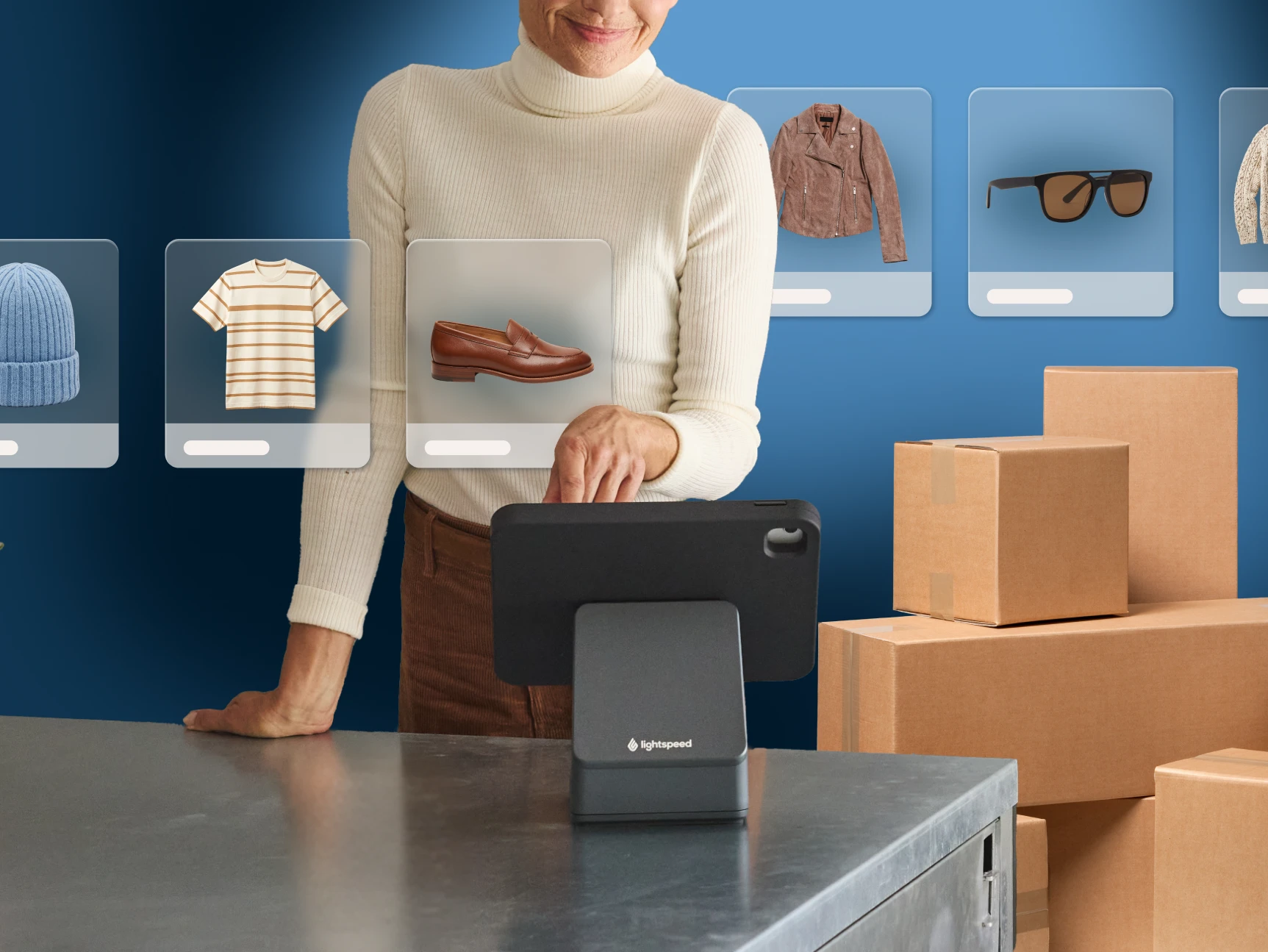
Order and receive stock in fewer steps
Create POs directly in Lightspeed to connect purchasing, receiving and inventory management in one place.
Create an order
Choose the supplier and the outlet, then add products
Send it
Email the purchase order to your supplier or keep it as your own record if you order by phone or through a supplier portal
Track it
The order stays open and "stock on order" shows against those products, so you can see what’s coming before it arrives
Receive it
When the inventory arrives, receive easily against an existing PO or create a new draft in seconds with AI Doc Import
Make quick work of purchase orders
Replace hours of admin work with time savers that connect to your data and support a growing business
- Easily create and send POs directly from your POS for total visibility
- Reduce manual inventory management tasks and help keep stock levels, cost prices and margins accurate
- Accurately capture and fulfill special orders with a dedicated workflow so you never miss a sale
- AI Doc Import turns supplier documents into draft purchase orders with a simple upload
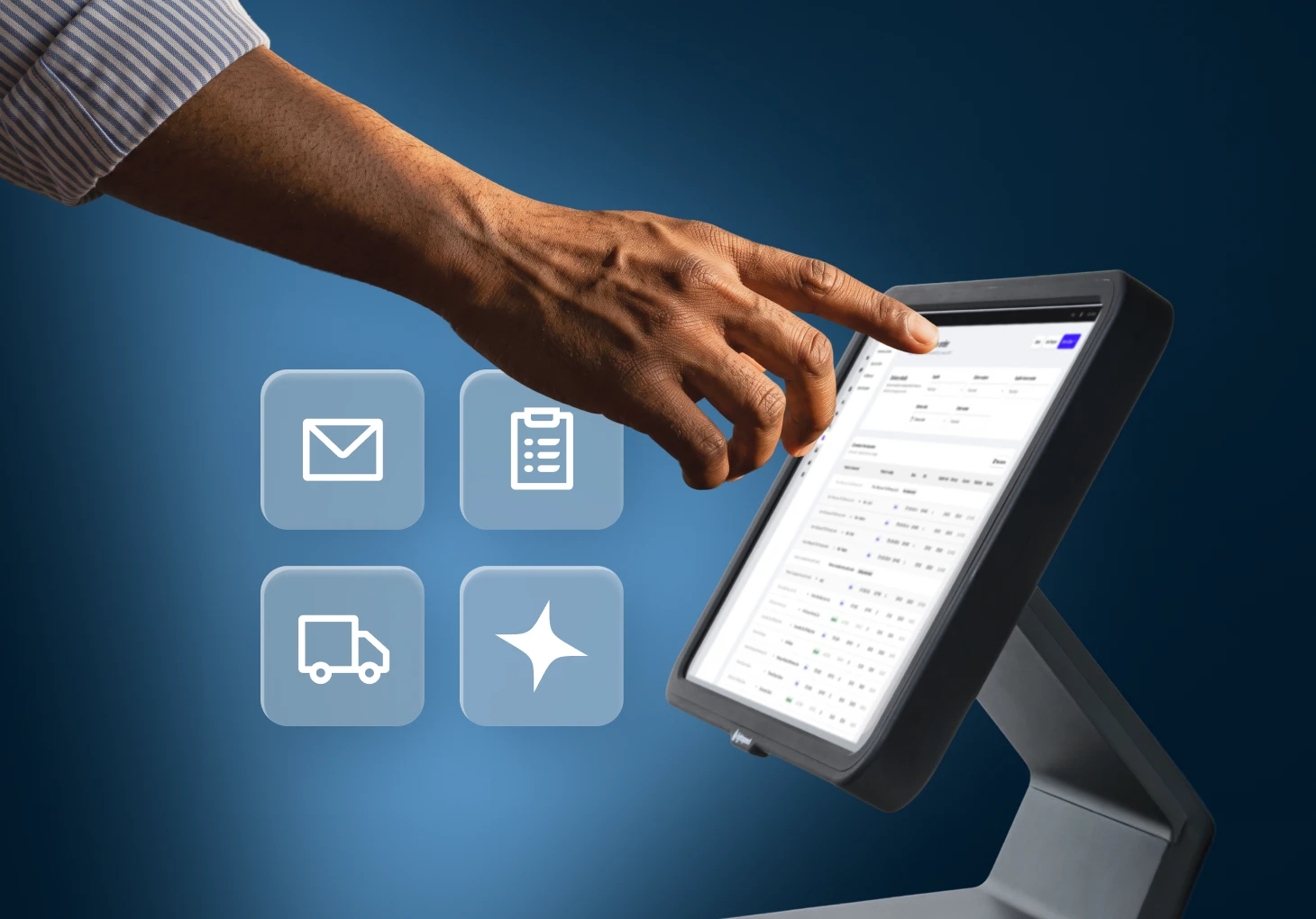
Frictionless inventory management
Lightspeed Retail has built-in tools for ordering stock from your suppliers and logging it when it arrives. As stock levels fluctuate, inventory updates automatically without a separate reconciliation step.
- Easily order for multiple locations with automated stock transfers
- Keep track of margins, COGS and stock value with cost updates based on the most recent deliveries
- Reorder with confidence knowing what’s on the way and what’s already in your inventory
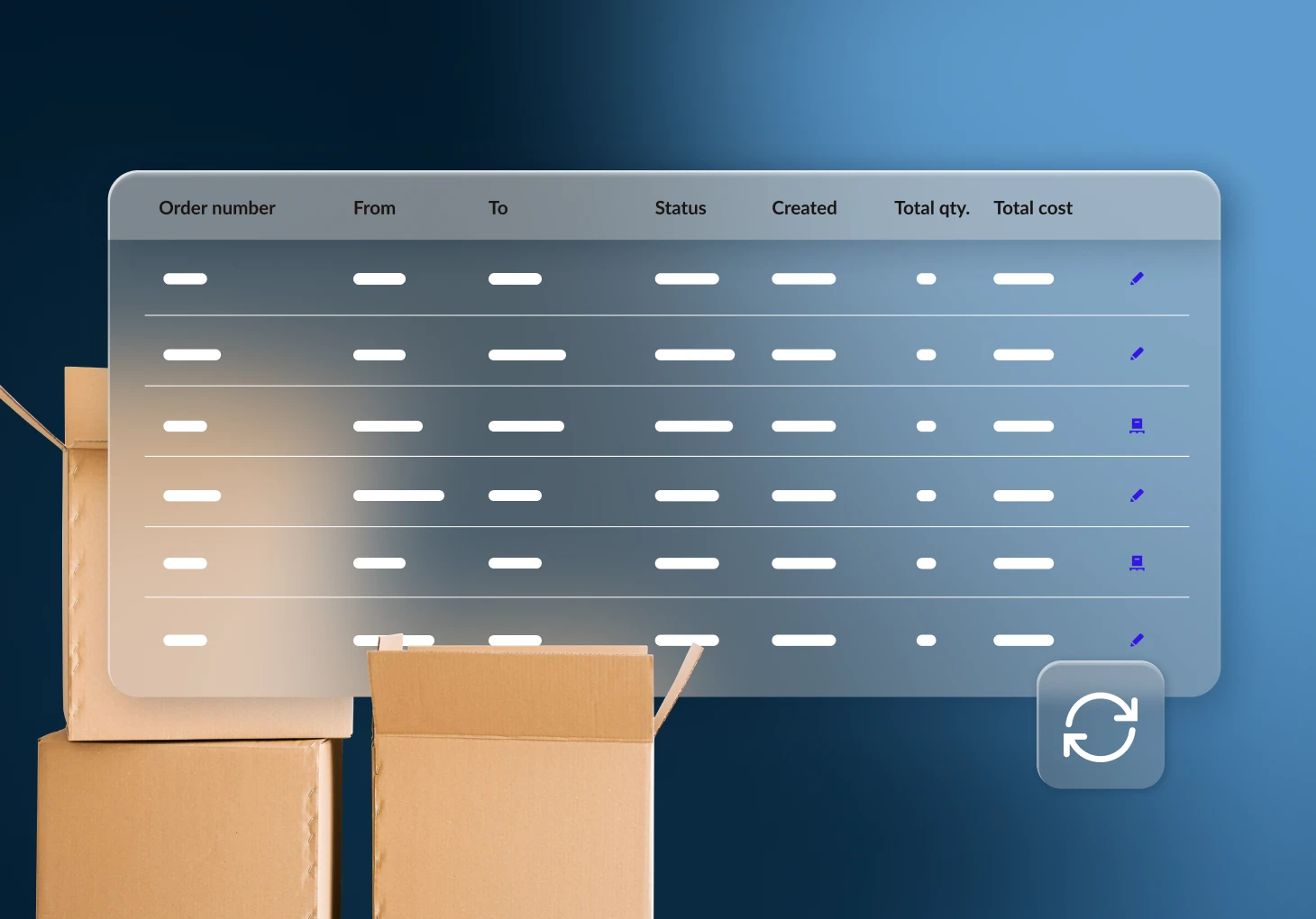
Workflows that work for you
No two businesses are exactly alike, which is why we have options to fit the way you work.
Lightspeed Scanner app
Create a draft purchase order from your phone with AI Doc Import
Accounting sync
Send a PO directly to your eligible accounting software
Wholesale ordering
PO Sync creates a seamless purchasing flow between NuORDER and Lightspeed
Advanced PO capabilities
Set replenishment rules, order for multiple locations, edit partial deliveries and manage landed costs
A complete system for retail.
Purchase orders right from your POS make inventory management seamless.